How to Handle Long-running or Stuck Tasks
Common BI tasks include extract card retrieval tasks, direct card tasks, ETL run tasks, extract dataset update tasks, and direct dataset update tasks.
During data analysis, task runtimes may become longer. Common signs include:
- A card retrieval task, whether extract or direct, takes more than one minute or does not respond for several minutes, while it usually finishes in seconds.
- An ETL task or dataset auto-update task takes much longer than its historical run records.
Suggestions for General Users
-
For card tasks, general users can usually only observe the symptoms: the card is slow, keeps loading, or reports a timeout.
-
For dataset or ETL update tasks, open View Update History.
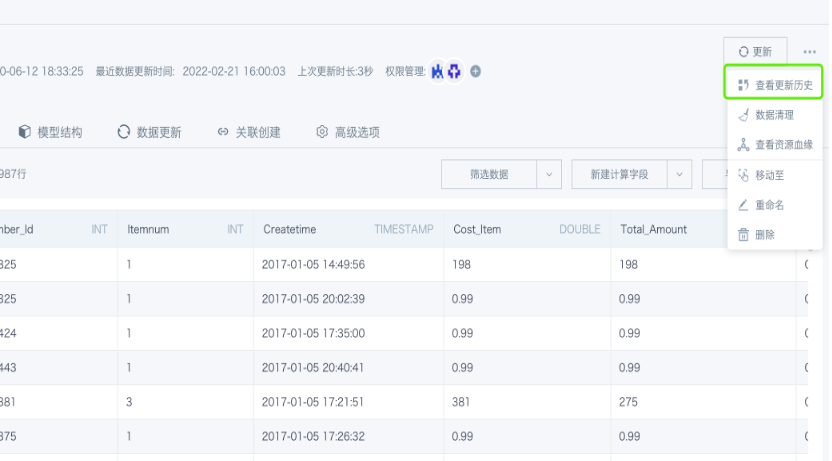
Use the history to judge whether the system may have a problem. For example, if a task previously took 3 seconds but now takes more than 30 minutes, or if a scheduled update has been delayed for a long time, escalate the issue.
Next, contact your internal BI system administrator.
Suggestions for System Administrators
Go to Admin Settings > System O&M > Task Management to view currently running tasks.
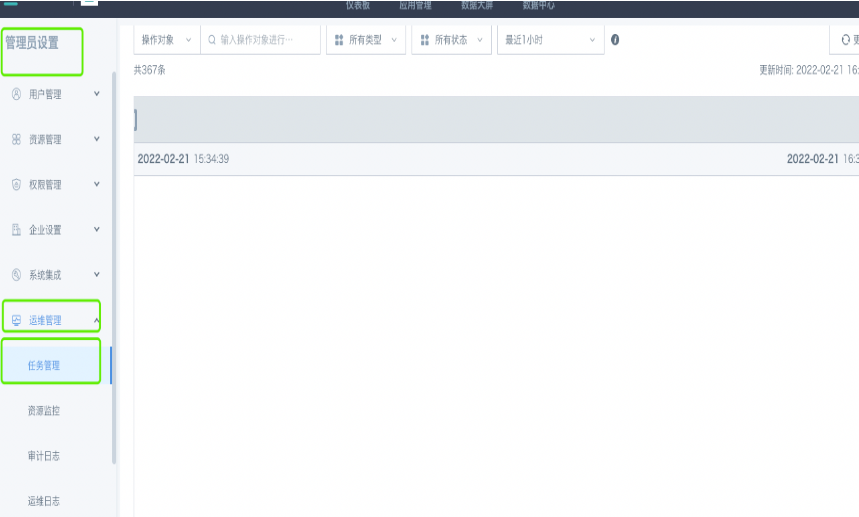
If many tasks are blocked, find the running tasks. If a task is abnormal, such as running for a long time with no clear progress, manually kill it and check whether the task queue resumes.\
-
If system tasks gradually recover and begin to run in sequence, record the abnormal task and report it to Guandata technical support in the service group for investigation.
-
If system tasks remain blocked, contact Guandata technical support immediately.
Additional Notes
-
First check whether the task status is healthy, especially the runtime. For cards, direct card retrieval is relatively slow and may take several seconds. If a card task takes several minutes, check whether the card contains complex calculations, whether the referenced dataset is large, and whether the card content needs optimization. For ETL, if a task runs for hours, open the ETL and check its previous run records. If the runtime was not always this long, check whether the ETL was modified recently. If it was not modified, check the system status or report the issue in the after-sales service group so technical support can assist. For datasets, first check whether the dataset is an extract dataset or a direct dataset. Then check the update method, incremental or full. For full updates, check whether the dataset update SQL contains long and complex SQL, because this can slow down dataset updates, and optimize the SQL if needed.
-
In an emergency, such as severe system task blockage caused by an abnormal ETL task or dataset task, cancel the task to temporarily restore the system. Batch task cancellation is supported. Then contact after-sales technical support for further investigation.