iframe Web Embedding Integration
Background
The Guandata BI platform supports embedding dashboards into third-party systems through iframe integration. Key points for iframe embedding include:
- SSO single sign-on. See Guandata BI SSO Integration.
- Hiding extra content on dashboards, such as the logo bar, dashboard directory, and page title.
- Passing page query parameters through the URL. See Add Condition Parameters to Page URLs.
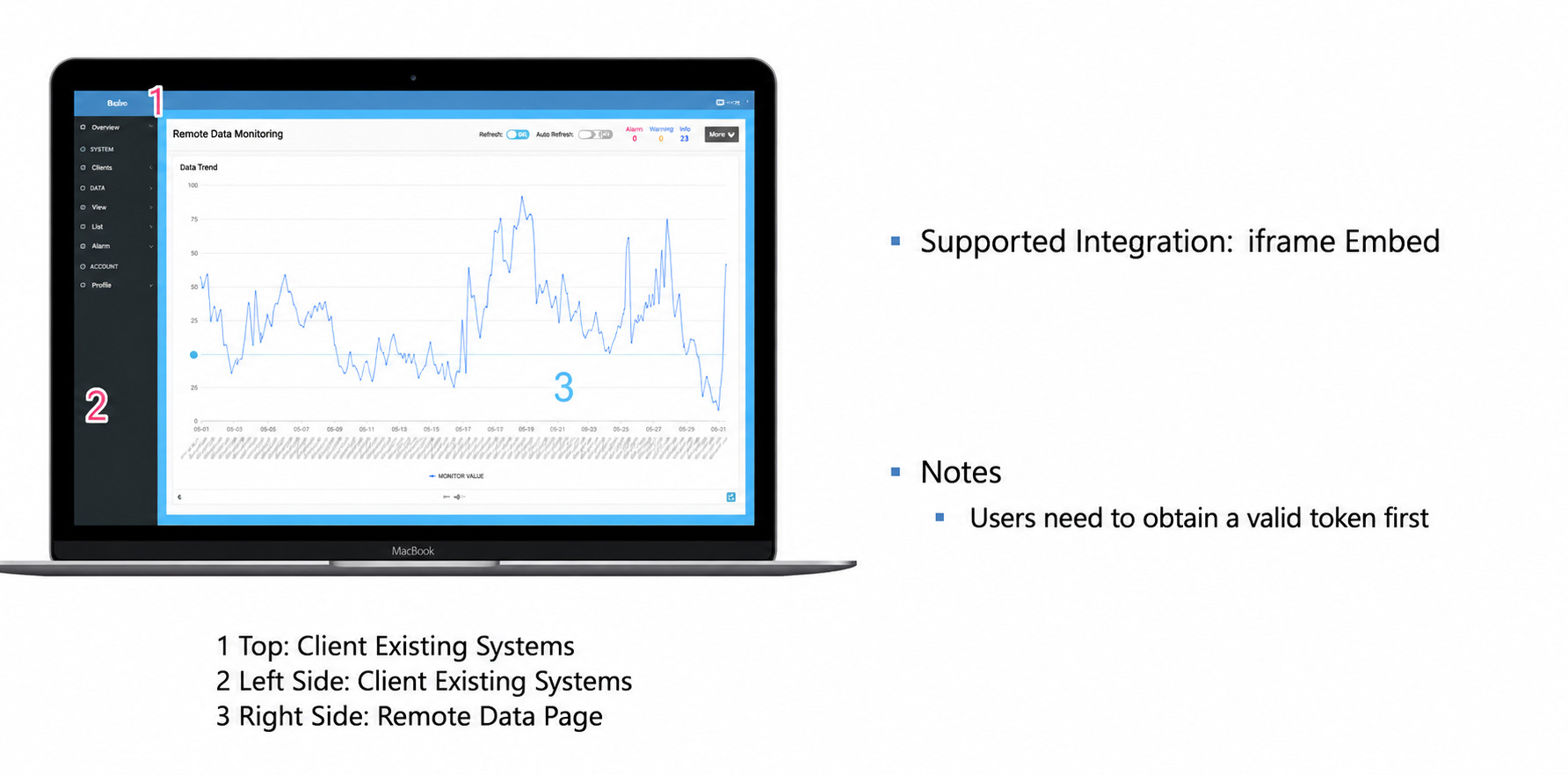
Hide Extra Content on PC Pages
- Native pages in the BI system include information such as the logo bar and dashboard navigation bar. These elements often need to be hidden after a page is integrated into a third-party system. Guandata provides specific URL query parameters that can hide this extra information.
Technical Approach: iframe Embedding; Add Query String to the URL
Common Parameters for PC Pages
- ?ps=iframe: Hide the logo bar and dashboard directory on dashboard pages.
- ?ps=iframe2: Hide the logo bar, dashboard directory, and page title bar on dashboard pages.
- ?ps=iframe3: Hide the logo bar on dashboard pages.
- ?viewMode=readonly: Hide page and card editing operations, temporarily making the user's permissions read-only.
- ?ps=embed: Hide all content except the visualization chart on card detail pages.
URL format example: https://app.guandata.com/page/b81ee1f66f3934de1ba5e447?ps=iframe
When the ps parameter is not embed, the minimum width of an embedded card is 500 pixels.
Mobile Page Integration
Show the Mobile View When Accessing a Page from PC
Scenario: After a Guandata page is integrated into WeCom, a DingTalk mini app, or a self-developed mini program, users may access it from PC. If you only want users to view the mobile layout and do not allow them to enter the PC side for editing, provide the mobile URL when providing the mobile integration page.
The mobile URL format is: $homeURL/m/page/{pageid}
URL format example: https://demo.guandata.com/m/page/p5c0e900bbe3746449bca688
Hide the Page Header and Bottom Favorite Icon (Dashboard Entry)
Scenario: When integrating a mobile page into WeCom, a DingTalk mini app, or a self-developed mini program, only page content should be displayed. Hide the header (dashboard entry) to keep users within the page and prevent access to other Guandata pages.
Parameter: ?pref.HostNavOnly=true
Show the PC View When Accessing a Page from Mobile
Background
After a PC page is embedded in a mobile app, the system loads the mobile layout by default based on device attributes to ensure a good experience on phones and other narrow-screen devices. However, on wide-screen mobile devices such as tablets, loading the mobile layout can cause stretched elements and redundant content because of the different screen form factor, reducing information display efficiency. To address this, the "device-identifier-based adaptive layout" feature is introduced to meet PC page adaptation requirements for wide-screen mobile devices.
Feature Introduction
- Core capability: Configure the "browser identifier" of the target mobile device on the backend to precisely match the device with the layout. After the target device's browser identifier is added to the configuration and takes effect, this type of device directly displays the full PC layout when accessing an embedded PC page.
- Configuration logic: Only device identifiers added to the configuration take effect. Unconfigured mobile devices still open the mobile layout by default.
- Applicable devices: Mainly intended for tablets and other wide-screen mobile devices. It can also be extended as needed to other mobile devices that require the PC layout.
Procedure
-
Obtain the device's "browser identifier".
Use the target device, such as a tablet, to open any website that supports running JS code online, such as JS Bin or RunJS.
In the website's code execution area or console, enter the following code:console.log(window.navigator.userAgent). After running the code, the page outputs a string, which is the device's browser identifier. Click Copy Result to copy the browser identifier and send it to operations personnel.

-
Configure the device identifier.
Operations personnel receive the "browser identifier" provided by the user and add it to the backend configuration file.
FAQ
Q: Is the browser identifier unique to each phone, model, or brand?
A: No. The browser identifier is strongly related to the device's brand, series, and network environment. One device model corresponds to a group of highly similar identifiers.
- Xiaomi and OPPO tablet devices usually contain "Pad" in the identifier.
- Samsung tablet devices usually contain "SM-T" in the identifier.
- Huawei Mate Pad devices usually contain "TGR_W" or "BAH3-W" in the identifier.
Notes
-
Q: What should I do if the existing URL already contains a query string? (Example)
A: Use the & symbol to connect all parameters. For example: http://newbi.com?provider=abc&ssotoken=xxxx&key1=ssss
-
Q: Can I hide the page title bar by using the parameter ?ps=iframe2, while keeping the filter bar?
A: This is not supported separately by default. Move all filters from the filter bar onto the page instead. Version 5.4.0 and later can introduce new configuration items. You must configure
app_header,page_header_titleBar, andpage_titletogether. Contact Guandata technical support if you have questions.