Explanation and Use Cases for Not Adding Extra Rows or Columns
1. Related Formulas
The dynamic property "Do Not Add Extra Rows or Columns" is used by three formulas:
-
G_(view name, field name)
-
G_LOOKUPEXP(function code, view name, field 1|field 2..., search view name, search target field 1|search target field 2..., condition field: condition field value position)
3、G_CELLCALCEXP
2. Dynamic Property Explanation for Related Formulas
Generally, "Do Not Add Extra Rows or Columns" is used together with "Interval Write":
1. G_(View Name, Field Name) Formula Description
This formula directly references (drags in) fields from a view and is a native formula. "Interval Write" means skipping n rows for each row of data.
Do Not Add Extra Rows or Columns: indicates that no additional rows or columns are added.
You can combine these two configuration items to insert data into alternating rows.
Because the template is processed from bottom to top, you can set "Do Not Add Extra Rows or Columns" on the first row to avoid inserting extra rows before alternating rows.
2. G_LOOKUPEXP Formula Description
This formula is a value lookup formula and can dynamically expand horizontally by one or more columns.
"Do Not Add Extra Rows or Columns" indicates whether to insert new columns. During horizontal expansion, the template is processed from right to left, so when alternately inserting data horizontally within the same group, the rightmost "Interval Expansion Metric Column" usually does not need to add extra rows or columns.
3. G_CELLCALCEXP Formula Description
This formula is an inter-cell calculation formula that can perform and expand calculations both horizontally and vertically.
Similar to the G_LOOKUPEXP formula, "Do Not Add Extra Rows or Columns" indicates whether to insert new columns. Usually, when alternately inserting data horizontally within the same group, the rightmost "Interval Expansion Metric Column" does not need to add extra rows or columns.
3. Case Description
Case 1: "Do Not Add Extra Rows or Columns" for the G_(View Name, Field Name) Formula
Scenario: Alternately insert rows vertically by dish name and dish ID.
Operation: Because there are 2 fields and interval writing is required, set Interval Write to 1. Select Do Not Add Extra Rows or Columns for the first field. The second field does not need to set "Do Not Add Extra Rows or Columns":
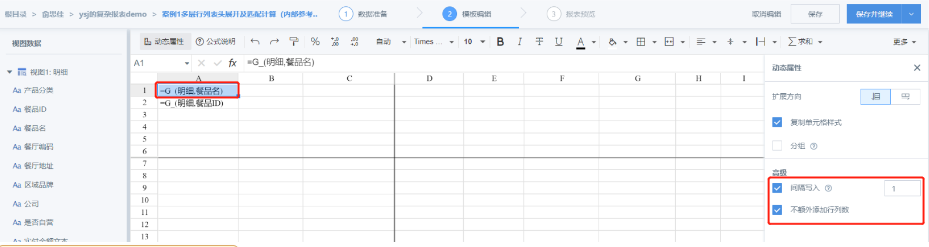
Final Effect:

- If the first field does not select Do Not Add Extra Rows or Columns, the effect is as follows:
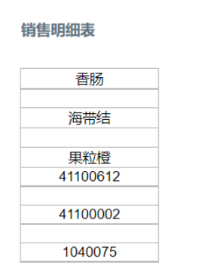
As you can see, the second field starts expanding only after the first field ends, so the effect of alternately inserting rows is not achieved.
The same applies to horizontal expansion:

Case 2: "Do Not Add Extra Rows or Columns" for the G_LOOKUPEXP Formula
Scenario: Query actual paid amount and actual paid sales by dish ID and restaurant code, then expand horizontally and write into columns alternately.
Operation: The interval write setting of this formula is different from that of G_(view name, field name). For G_(view name, field name), Interval Write = 1 means writing with one position skipped. However, the interval of G_LOOKUPEXP includes the field itself, meaning the interval count includes its own position. For example, if there are two calculated fields, set the interval here to 2.
The "Do Not Add Extra Rows or Columns" property is the same as for G_(view name, field name). Select Do Not Add Extra Rows or Columns for the first field. The second (last) field does not need to set it.
Why does the G_LOOKUP function return 0 even though data exists?
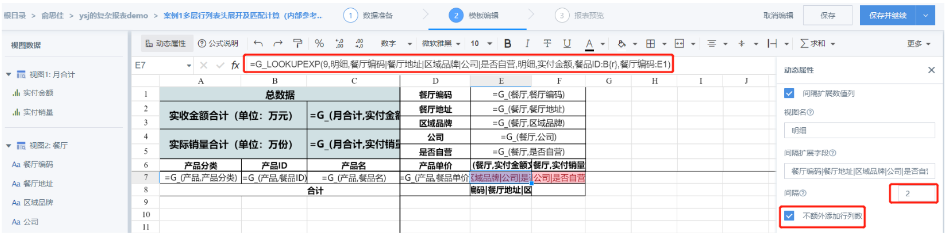
Final Effect:

- If the first field does not select Do Not Add Extra Rows or Columns, the effect is as follows:
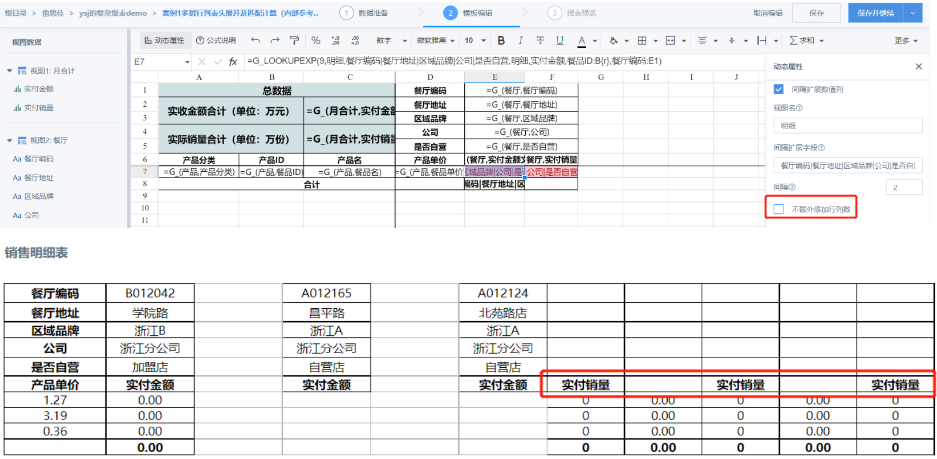
Notes:
- The header on the left is hidden, and the merged cells in the header above are canceled to prevent errors. This example only shows the effect of the "Do Not Add Extra Rows or Columns" property itself.
- If there is a row total and the last field selects "Do Not Add Extra Rows or Columns", the row total will be overwritten:
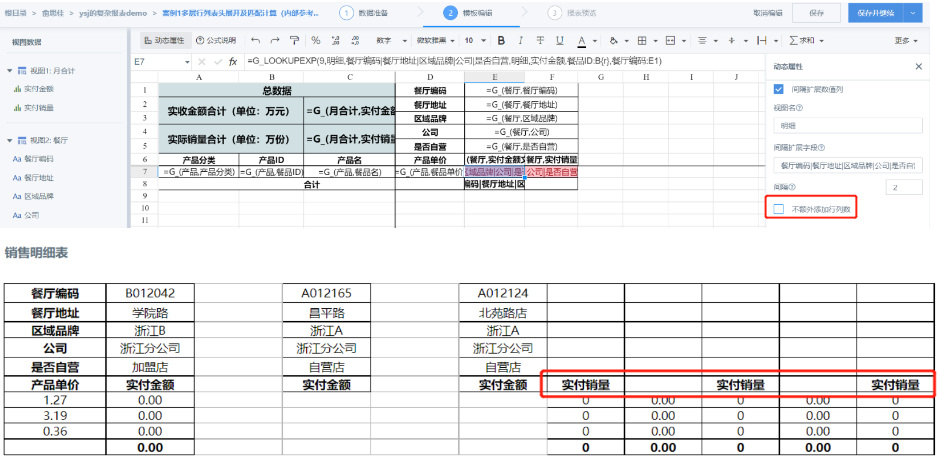
To display the row total normally and have the two metric fields written alternately at the desired interval, select Do Not Add Extra Rows or Columns for the first field and do not select it for the second field:

Case 3: "Do Not Add Extra Rows or Columns" for the G_CELLCALCEXP Formula
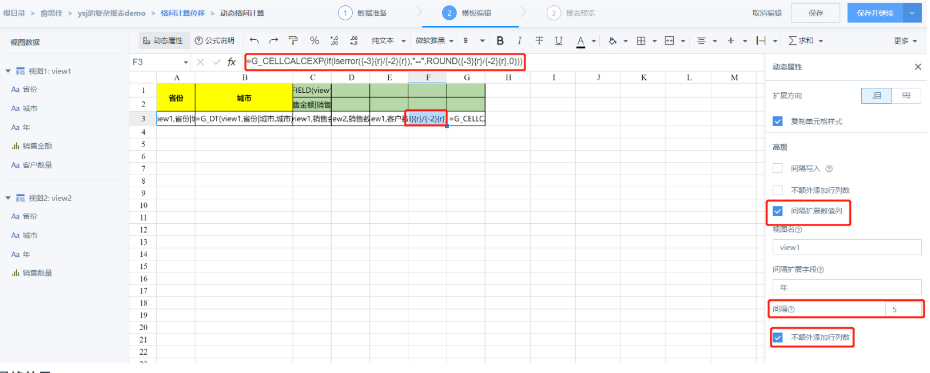
Scenario: Perform cross inter-cell calculations for item unit price and customer unit price, and fill the results into the corresponding cells.
Operation: Because horizontal expansion is required, select Interval Expansion Metric Column. There are 5 fields, so set the interval to 5 and select Do Not Add Extra Rows or Columns:
Final Effect:
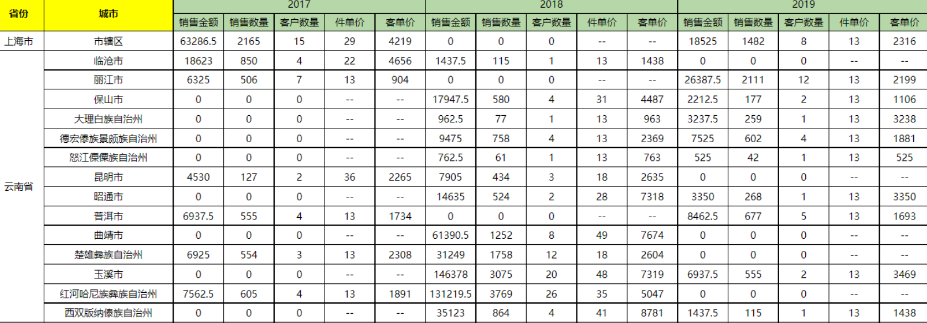
- If you directly set Interval Write and Do Not Add Extra Rows or Columns above, horizontal expansion cannot be performed:

The effect is as follows:

- If the first field does not select Do Not Add Extra Rows or Columns, the expansion will become disordered:
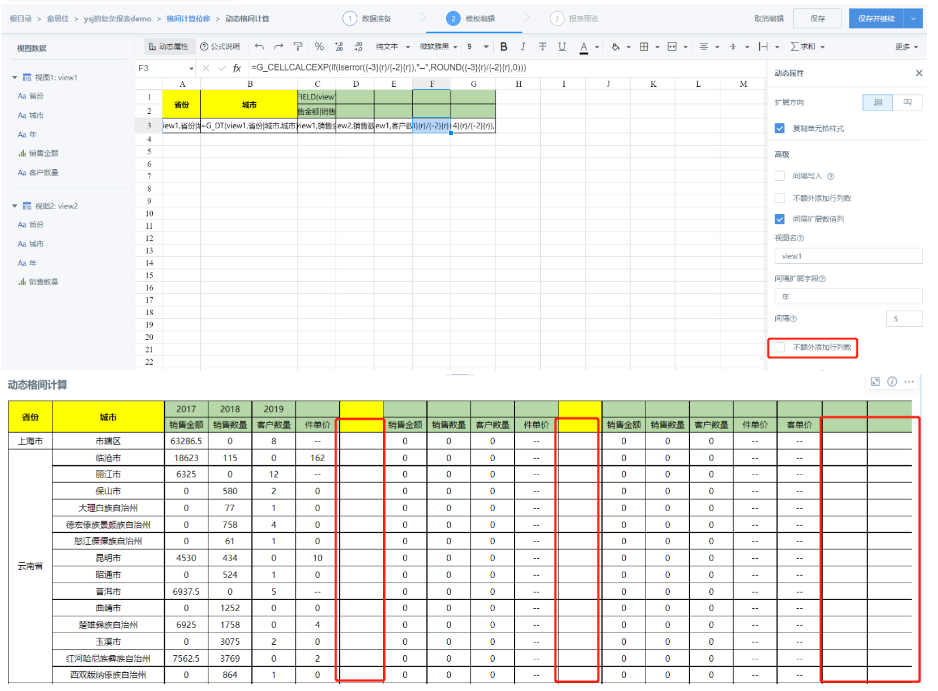
4. Summary
-
"Do Not Add Extra Rows or Columns" can be set for three formulas.
-
If multiple fields use this property, do not select Do Not Add Extra Rows or Columns for the last field.