Implement Horizontal Expansion for Multi-Level Headers in Complex Reports
Scenario
In a complex report, multiple dimension fields need to expand horizontally. For example, when the dimension is region, you need to expand retail revenue and targets for each city tier in each month. The final effect is shown below.

Implementation Method
Prepare Data
Create a complex report and a new view, then calculate the required data to be displayed. In this case, the horizontally expanded data comes from the view Month. Here, the date range "2019" and the city tiers "First-tier" and "Second-tier" are filtered.

Edit the Template
Click Save and Continue to enter the template editing interface, and first create the headers for the fixed text section. In this example, horizontal expansion starts from column J. All horizontal expansion formulas are shown below.

The first and second header levels both use the formula G_EXPFIELD ( view name, derived field 1|field 2..., derived field name, number of merged cells ). This formula automatically expands all values of a specified derived field in a derived table (field contents are deduplicated and sorted in ascending order) horizontally in sequence, and supports horizontal cell merging during expansion. The specific usage and explanation are as follows:
First-Level Header: Month =G_EXPFIELD(月份,月,月,4)**
Explanation: Generate a derived table based on the field "月" in the view "月份", and then select the derived field "月". Since the view filters one year and all 12 months have data, it expands horizontally 12 times in sequence. The number 4 means that 4 cells are merged for each month.
Actual content of the derived table (月) (the derived table itself is not visible):

Second-Level Header: City Tier =G_EXPFIELD(月份,月|城市线,城市线,2)
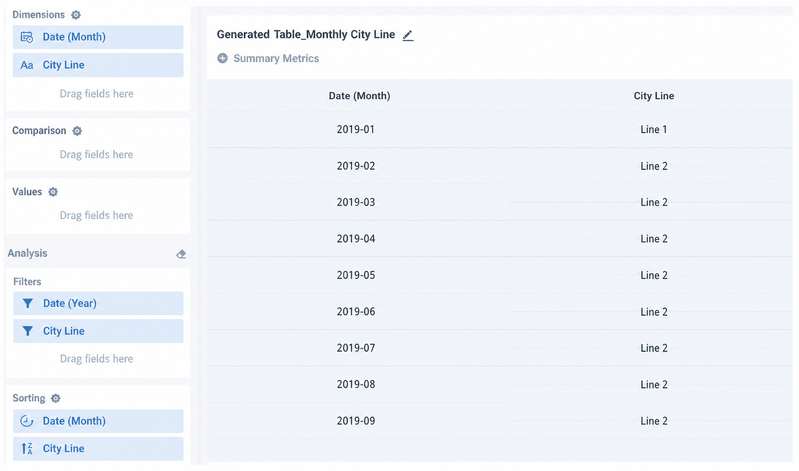
Explanation: Generate a derived table based on the fields "月" and "城市线" in the view "月份". At this point, the derived table contains 12*2=24 rows of data (see the figure below). Then select the derived field "城市线", which has only two values: "一线" and "二线". Since the view filters one year, the 2 city tiers expand horizontally 12 times in sequence. The number 2 means that 2 cells are merged for each city tier.
Actual content of the derived table (月|城市线) (the derived table itself is not visible):
Third-Level Header: Retail Revenue|Target =G_EXPMETRIC(月份,月|城市线,零售流水|目标)
This header level consists of fixed fields and uses the formula **=G_EXPMETRIC(月份,月|城市线,零售流水|目标). This formula automatically expands one or more pieces of text horizontally in sequence. The number of expansions is determined by the number of field values in the derived table generated by the view.
Explanation: Generate a derived table based on the fields "月" and "城市线" in the view "月份" (24 values in total). Then generate the fixed text fields "零售流水" and "目标" for each month|city tier, expanding to 48 columns in total.
Preview and Save
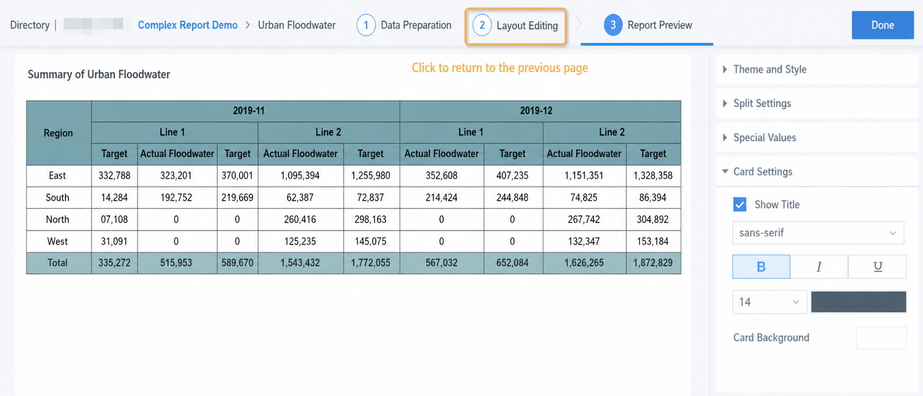
Click Save and Continue to preview the result in the next step. Then click Template Editing to return to the template and adjust formulas or styles until the desired effect is achieved. Finally, click Finish to save.
Notes
A. The formulas used for the values and total row must use the same derived table (月|城市线) to ensure that the number of horizontally expanded columns matches the header. The G_LOOKUPEXP formula must also reference the first- and second-level header fields above as query fields.
B. None of the formulas in this column require dedicated dynamic property settings. Whether "Copy Cell Format" is selected does not affect the final display effect.
C. To create more header levels, more fields may be needed when building the derived table.
D. Fields in a derived table are sorted in ascending order by default, and the sorting method cannot be adjusted. If the header is plain text and requires custom sorting, you cannot use a derived table. Instead, create a new view for the dimension fields used, sort them in the view, then reference the fields in that view and set the expansion method.
E. In this case, the expansion formulas are all in the same column, so their format can only be set uniformly. If multiple metrics expanded by the formula require different formats (for example, one amount and one percentage), add columns after the original formula column, split the value formulas into multiple formulas, and set the dynamic property "Interval Write". For details, see Complex Report Alternating Data Insertion Case Sharing.