Conditional Formatting Settings in Complex Reports
Background
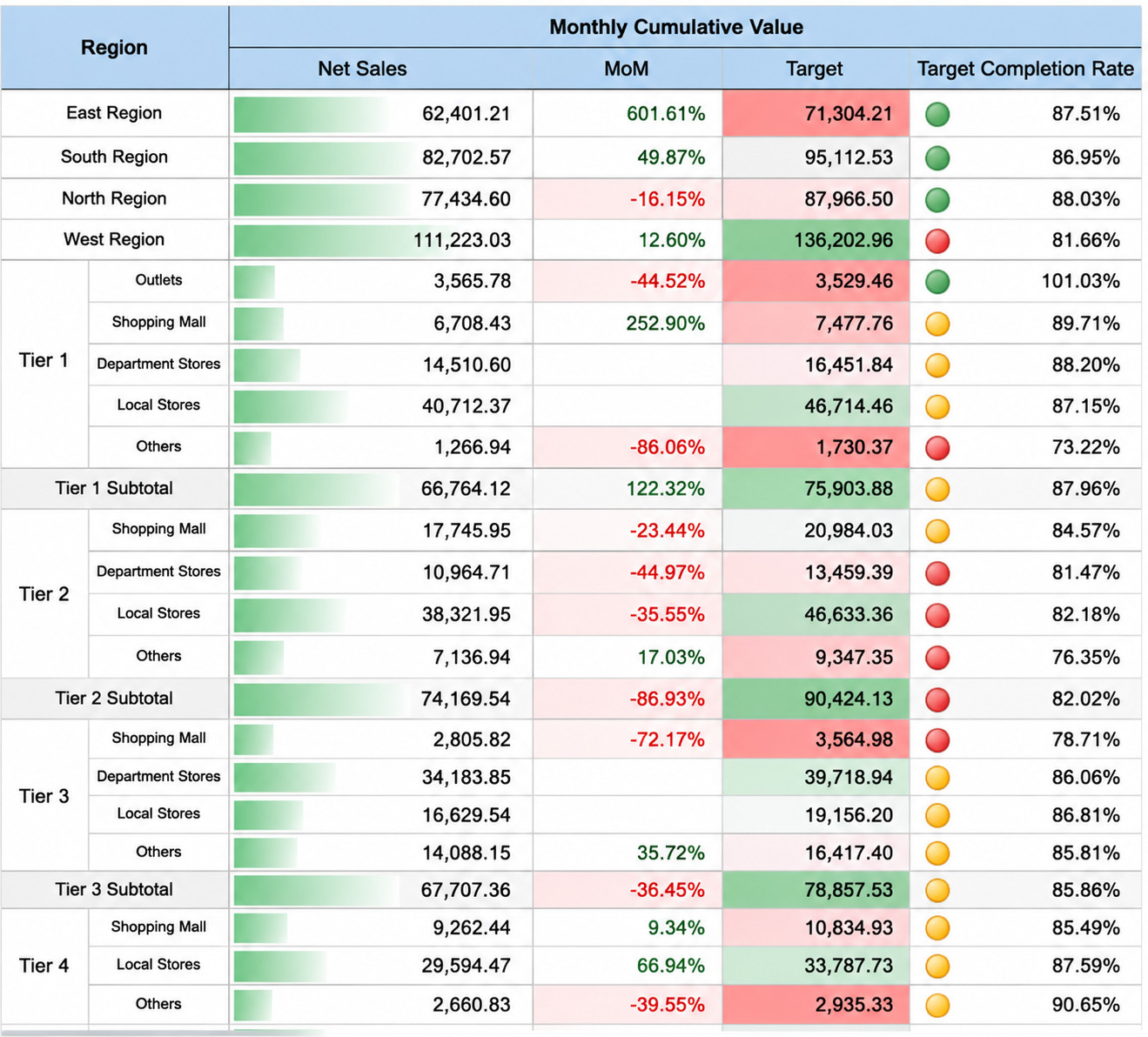
When creating complex reports, you may need to apply conditional formatting to certain cells. When a condition is met, different colors, fonts, and other visual cues can appear to improve readability. In this case, use the conditional formatting feature. Conditional formatting in complex reports depends on Excel's conditional formatting capability and supports multiple effects such as data bars, color scales, and icon sets.
Configuration Methods
- When uploading a local Excel template, configure conditional formatting directly in Excel, and then upload the Excel file with conditional formatting.
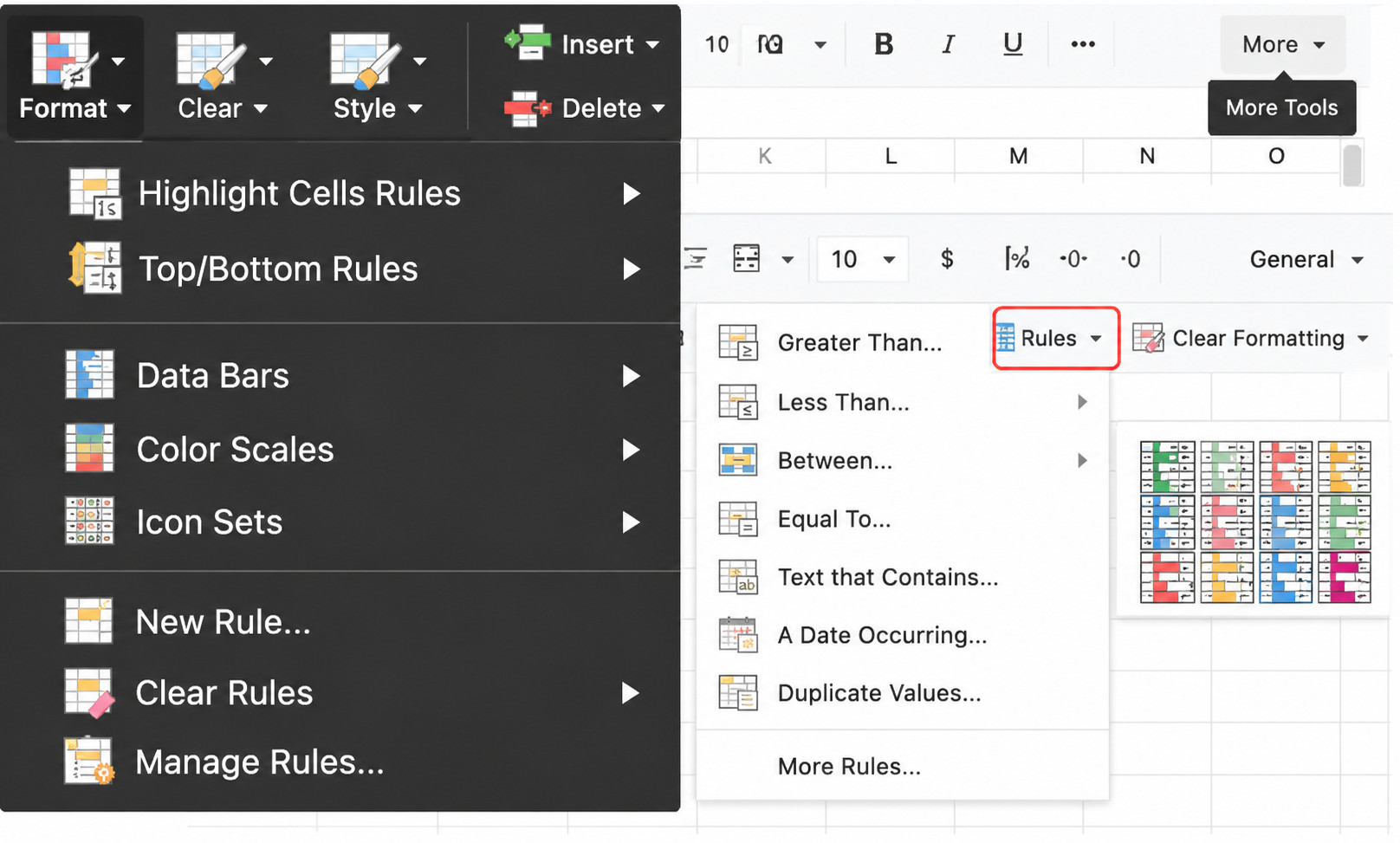
- In online editing mode, click Conditional Formatting under More Features to configure it.
Practical Case
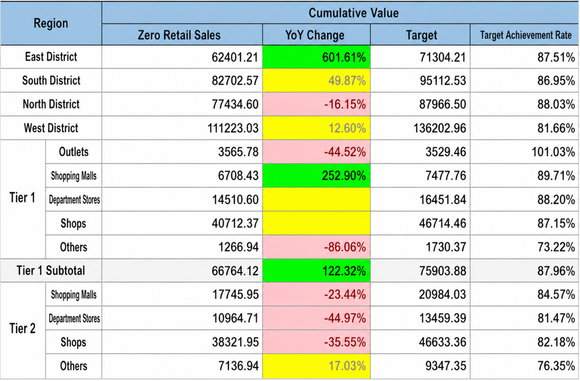
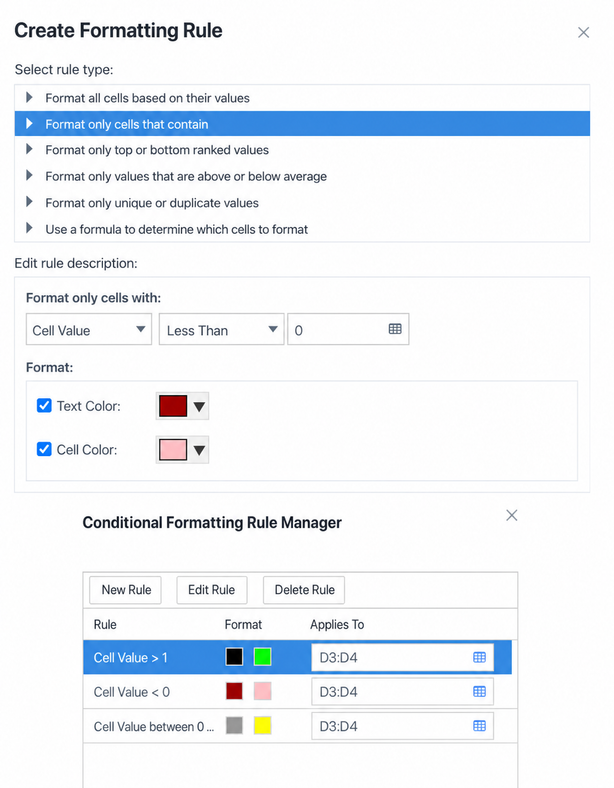
The following example demonstrates the configuration method and effect in online editing mode by using custom rules: 1. <0: pink background and red font; 2. >=0 and <=1: yellow background; 3. >1: green background and black font.
Create three formatting rules:
Effect: