Solution When Sorting Does Not Take Effect in Complex Reports
Scenario 1
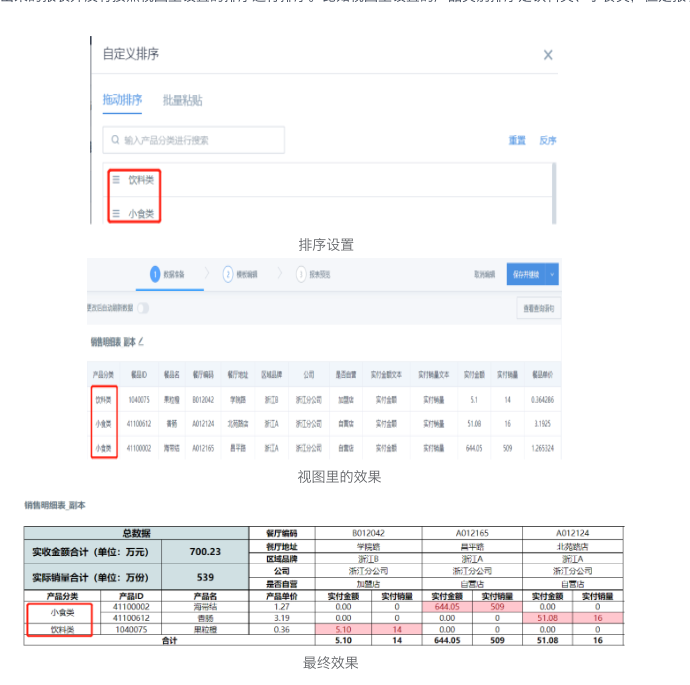
When creating a complex report, the generated report is not sorted according to the sorting configured in the view. For example, the product category sorting in the view is Beverages, Snacks, but the final report sorting is Snacks, Beverages.
Cause
A derived formula is used in the template. When the derived table generated by the derived formula is aggregated, it is automatically sorted in ascending order by string ASCII code, and the sorting method cannot be changed. Therefore, it may differ from the original sorting in the view.
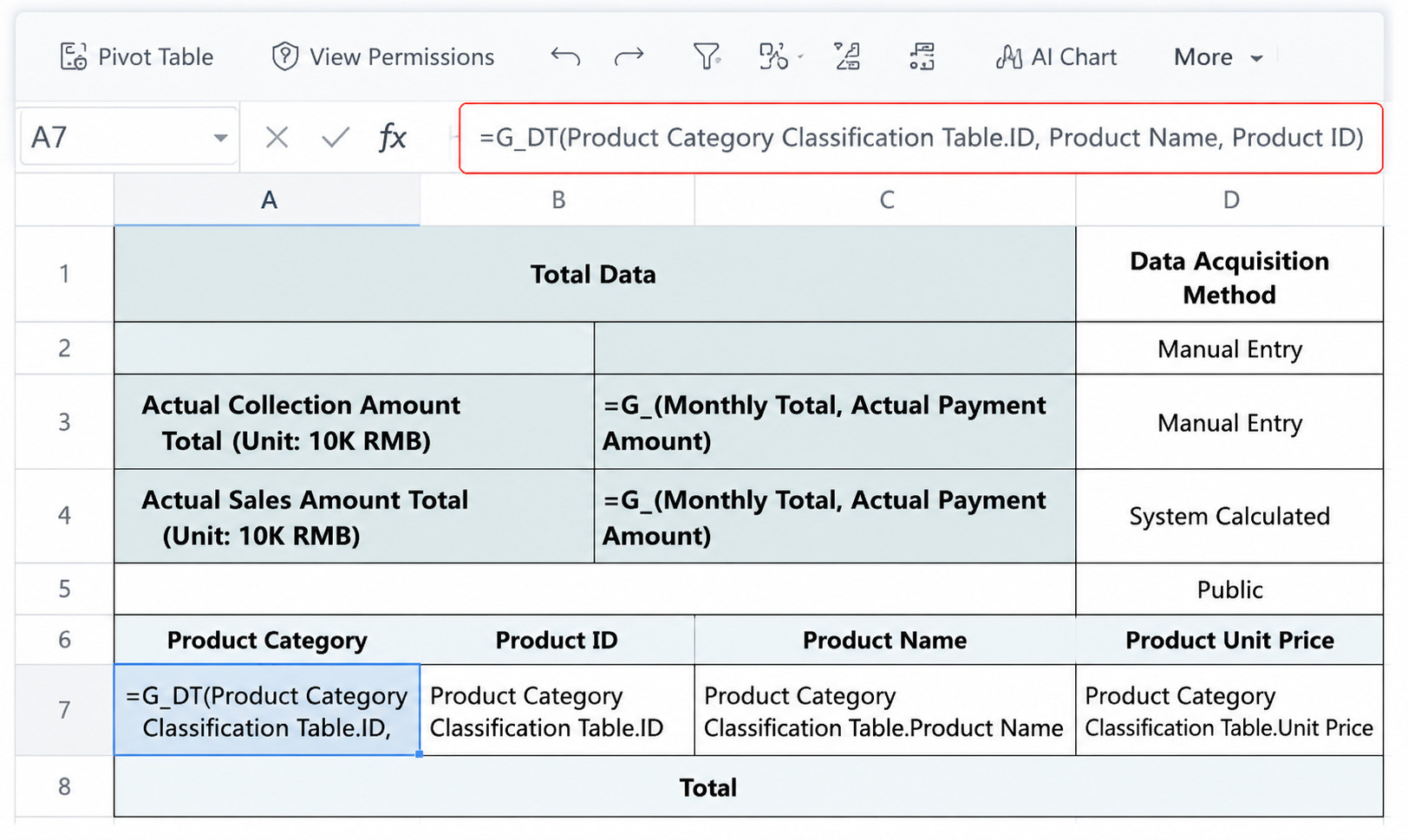
In this scenario, the derived formula G_DT is used. Product Category uses the automatic sorting of the derived table and cannot inherit the view sorting.
Solution
Add one or more views according to the actual scenario, create dedicated dimension tables, and configure the sorting method. Then use dynamic formulas based on the original table in the template. In other words, display the derived table directly as a view, sort it, and then reference it.
In this case, if you only need to sort by product category, you can create a product dimension view and reference it directly.
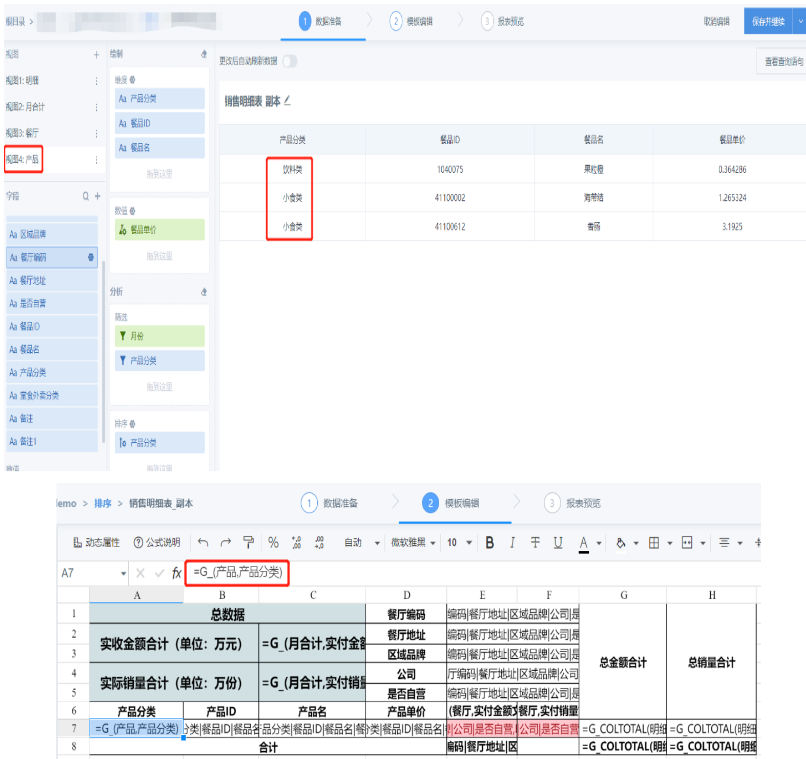
At this point, the product category sorting in the output is correct.

Scenario 2
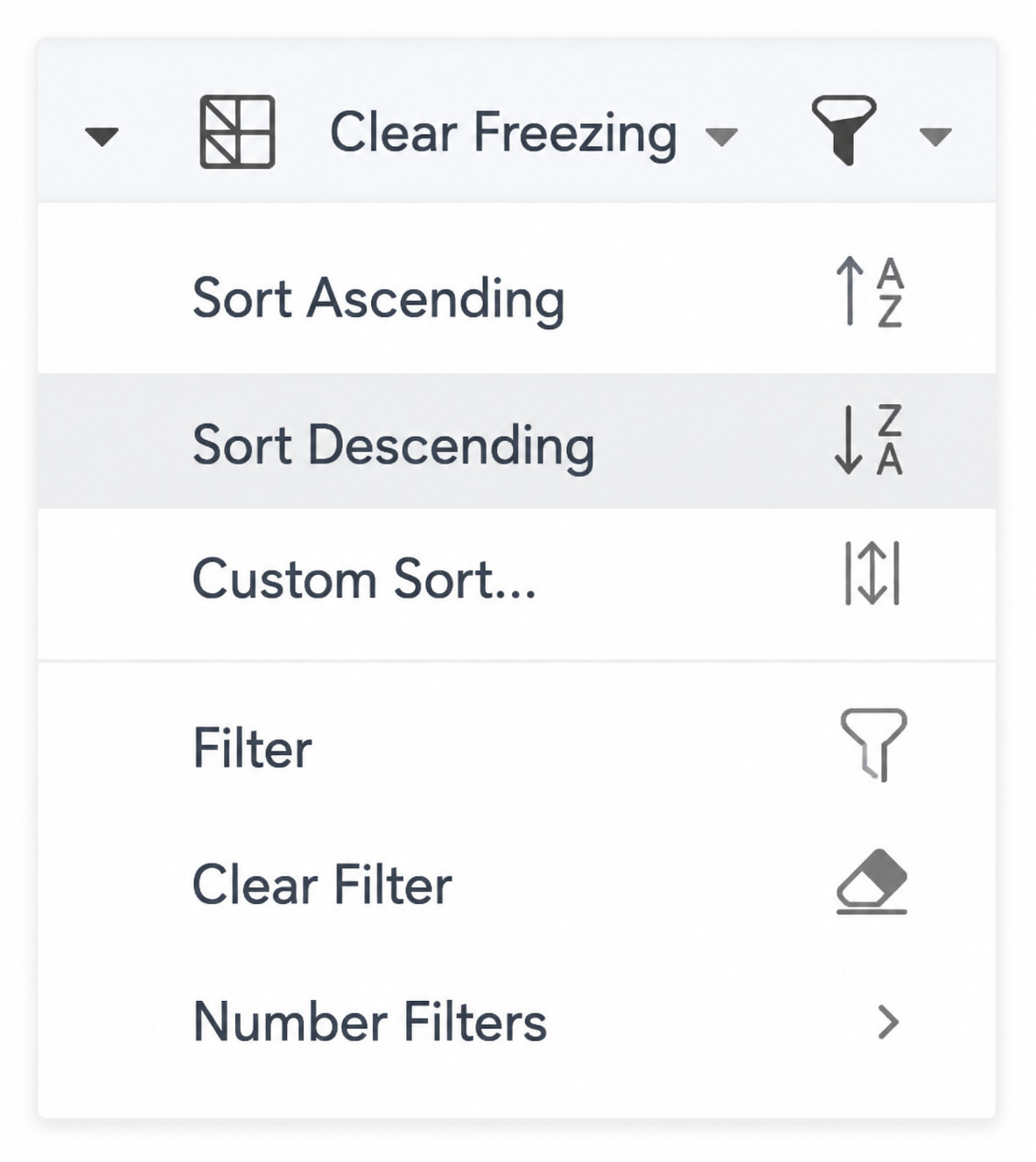
The user configures sorting from the toolbar in the template, but the sorting does not take effect in preview.
Cause
Whether in online editing mode or local editing mode, sorting configured in the template does not take effect. Data is displayed only according to the order prepared in the view.
Solution
Calculate and sort all required data in the view. The template should only perform simple references and display.
Summary
Sorting for derived tables cannot be adjusted, and sorting is not supported in templates. Only sorting configured in the view takes effect.