Multi-Dimensional LOOKUP Usage in Complex Reports
Scenario
Custom sorting needs to be applied by product category. Sales quantity must be matched by product category, product name, province, city, and region, and expanded horizontally by date (year). The sample table is as follows:

Implementation Steps
Prepare Data
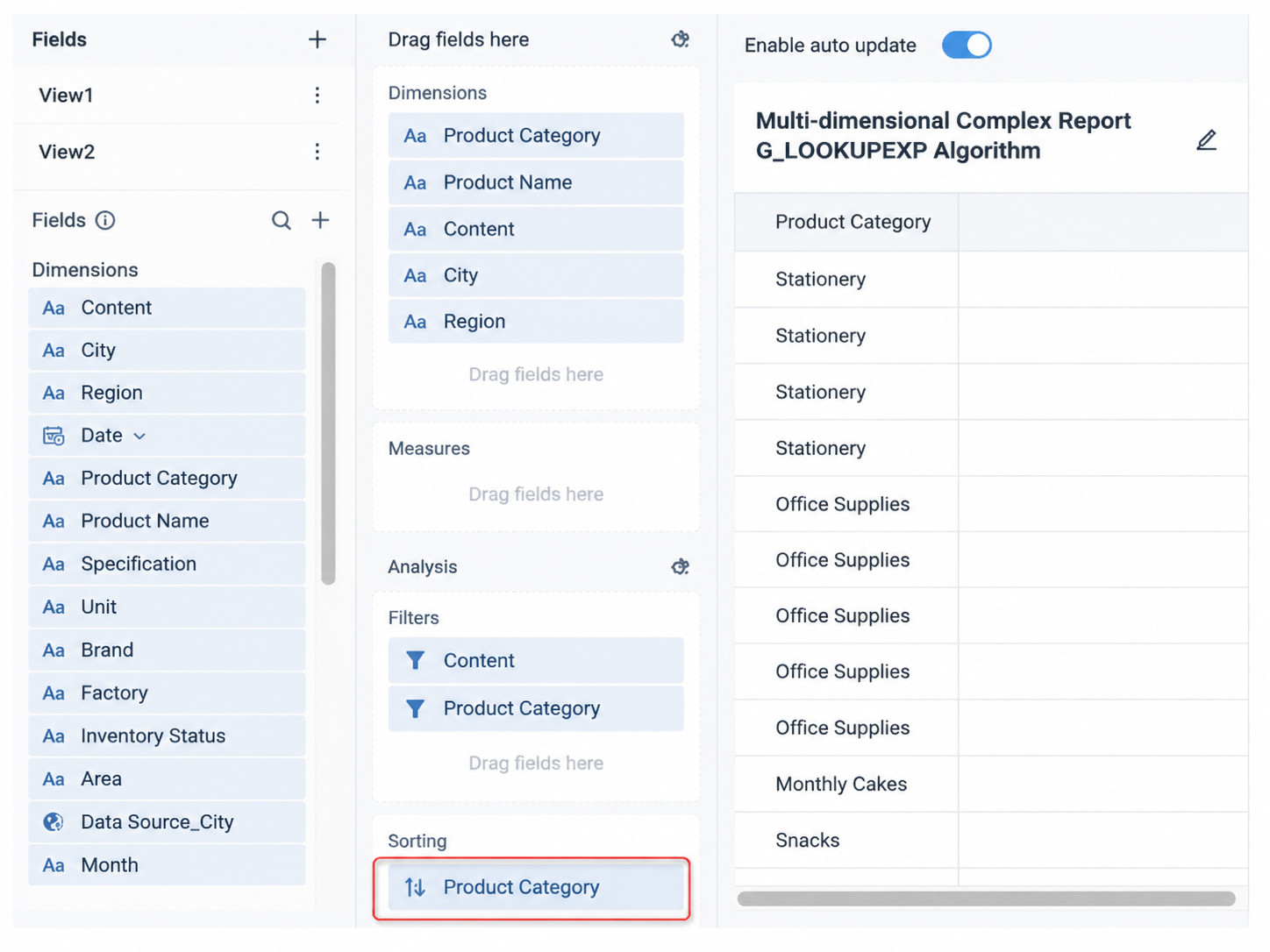
- This scenario requires both sorting and matching data by dimensions, so two views are needed. Create two views: one for dimensions (using native formulas), and one for matching data (using derived formulas).
- In the view, drag the fields that need sorting into Sort and configure the expected sorting order.
Edit the Template Online
-
Write the complex report template online
-
Write the headers to be displayed directly in the first row of the template.
-
Drag fields from the view into the template, or manually enter formulas, such as
=G_(view1,Product Category). -
Configure dynamic properties. Vertical expansion is used by default. If grouping is required, select Group in dynamic properties and choose the grouping method.

- Use
G_LOOKUPEXPto match data corresponding to dimensions:
=G_LOOKUPEXP(9,view2,Date,view2,Sales Amount,Product Category:A{r},Product Name:B{r},Province:C{r},City:D{r},Region:E{r},Date:F1)
  -- 9 means sum.
  -- "view2,Date," means using Date in view2 to build a derived table. The same number of columns expands horizontally as the number of deduplicated dates, sorted by date in ascending order.
  -- "view2,Sales Amount," means matching "Sales Amount" in view2.
  -- "Product Category:A{r}" indicates the condition field to search and the cell position.
The template is as follows. For the specific writing method, refer to the attachment:

- If horizontal expansion is not required, no derived table is needed. Use
G_LOOKUP:
=G_LOOKUP(9,view2,Sales Amount,Product Category:A{r},Product Name:B{r},Province:C{r},City:D{r},Region:E{r},Date:F1)
Note: Because Region -- Province -- City and Product Category -- Product Name have hierarchical relationships, if city names and product names are unique, the condition fields searched in this case only need to be Product Name, City Name, and Date.
Edit the Template Locally
-
Write the complex report Excel template
-
Write the headers to be displayed directly in the first row of the template.
-
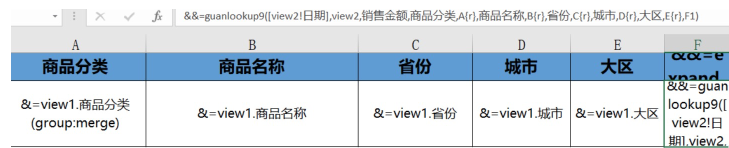
Use the
&=table.fieldformula to introduce fields from the view table, such as&=view1.Product Category. -
If grouping is required, add (group:merge) after item 2, such as
&=view1.Product Category(group:merge). -
Use guanlookup to match data corresponding to dimensions:
&&=guanlookup(9,[view2!Date],view2,Sales Amount,Product Category,A{r},Product Name,B{r},Province,C{r},City,D{r},Region,E{r},F1)
----------------
If horizontal expansion is not required, no derived table is needed:
Syntax: &&=guanlookupN([], , , )
Example: &&=guanlookup9([],view2,Tax-Inclusive Price,Province, A{r}, City, B{r})
The template is as follows. For the specific writing method, refer to the attachment:
- After uploading the template, preview and save it.