How to Filter Weekday and Weekend Data
Requirement Background
Users want to separately calculate and compare sales data for weekdays (Monday to Friday) and weekends (Saturday and Sunday), and need to use filters for filtering.
Implementation Methods
Method 1
This method applies when weekday and weekend grouping needs to be used by multiple cards. Create calculated fields and grouped fields on the dataset overview page or in ETL.
-
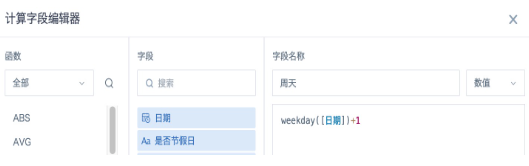
Create a calculated field and use weekday() + 1 to get the day of week for each date. The returned result is an integer from 1 to 7. In the WEEKDAY function, 0 = Monday, 1 = Tuesday, ..., 6 = Sunday.
-
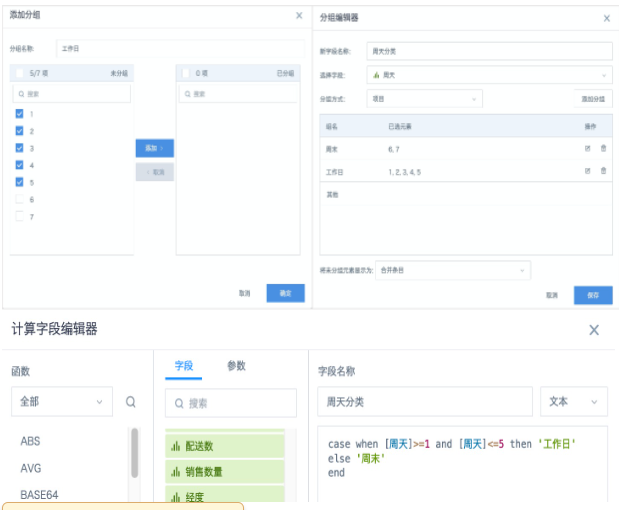
Create a grouped field. Select the Weekday field created in step 1, set the grouping method to Item, and click Add Group. Select 1-5 and click Add to group them as Weekdays. You can also create a calculated field and use a function to determine weekdays and weekends.
-
Return to the dashboard page, create a filter, select the Weekday Category field created in step 2, configure it, click Save, and select the cards to link.
Method 2
This method applies to a single card.
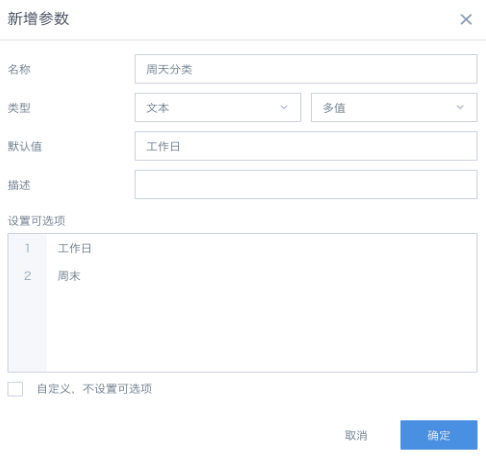
- Create a global parameter with type Text - Multi-value. Set the options to Weekday and Weekend. Then create a parameter filter on the dashboard page. Difference between multi-value and single-value global parameters: multi-value supports multiple selections and the filter default value can be empty; single-value supports only one selection and the filter default value cannot be empty, so you cannot view overall data for both Weekday and Weekend.
- Follow steps 1 and 2 in Method 1 to create a calculated field and a grouped field in the card.
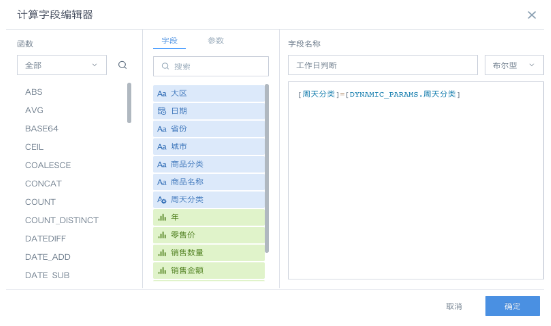
- In the card, create another Boolean calculated field that references the global parameter created in step 1. Then drag the field to the filter area, set the filter condition to True, and save the card.
- Configure linkage between the filter and the card. Manually associate the parameter when creating the association.