Implement YoY and MoM Comparison for a Partial Current Month
Scenario
A report displays monthly data and YoY/MoM data. When filtering historical months, the report compares the full month with the corresponding same-period month. However, the current month has not ended. For example, if today is February 8, 2023, you may want to compare data from February 1 to February 7, 2023 with data from February 1 to February 7, 2022. If you directly use YoY/MoM in advanced calculations, the data is compared with the entire month of the previous year, which makes the calculated growth rate unreasonable. Therefore, historical months should use full-month comparison, while the current month should only compare data within the same date range of the same-period month.

Implementation
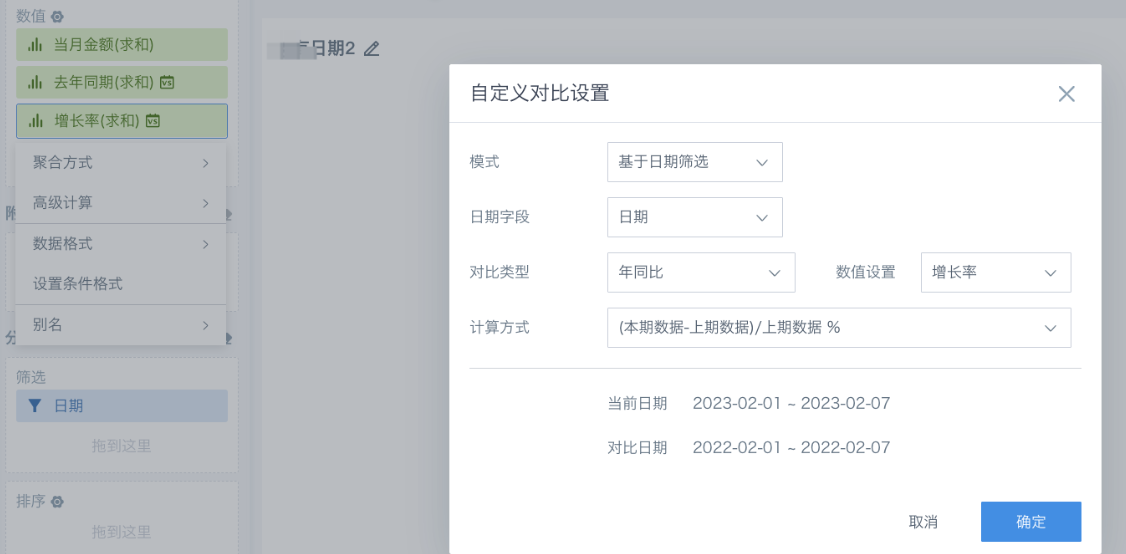
- Drag the numeric field to be calculated into Values three times. Here, [Amount] is used as an example. Name the three fields Current Month Amount, Same Period Last Year, and Growth Rate. Configure YoY/MoM for Same Period Last Year and Growth Rate, and select Comparison Value and Growth Rate respectively in Value Settings. Here you can view the current date range and comparison date range.
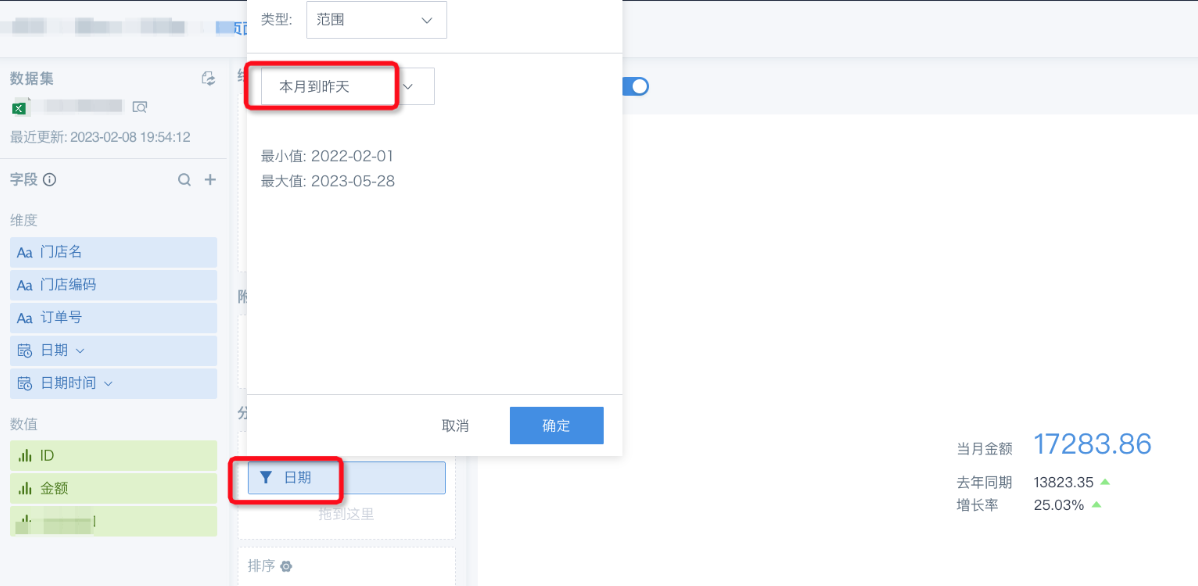
- Drag the date field into the filter area and select the quick range This Month to Yesterday.
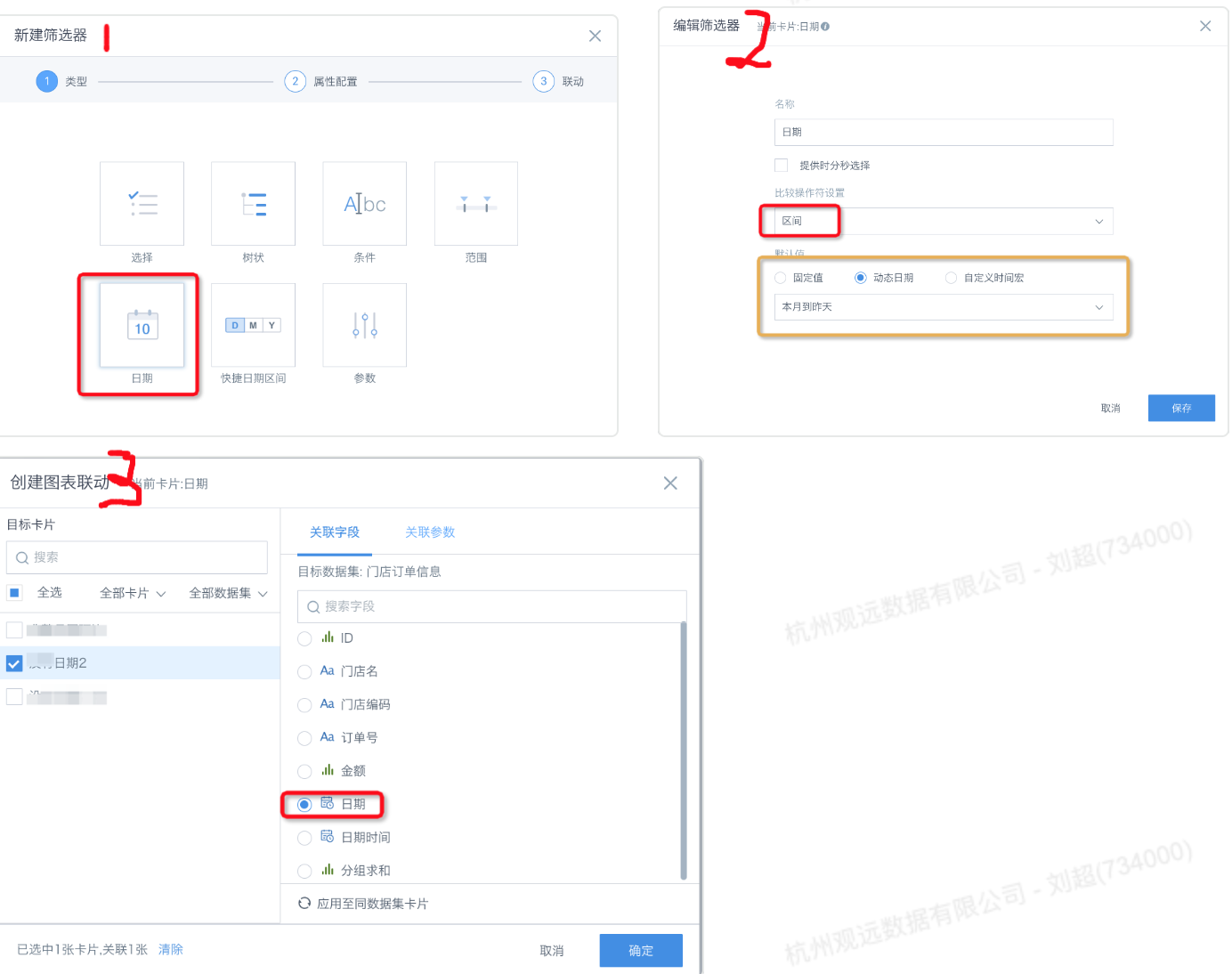
- Save the card and return to the page. Create a date filter. The default value can be customized, or you can select the same time range used in the card. The linked field only needs to be the same as the date field configured in the YoY/MoM field of the card.
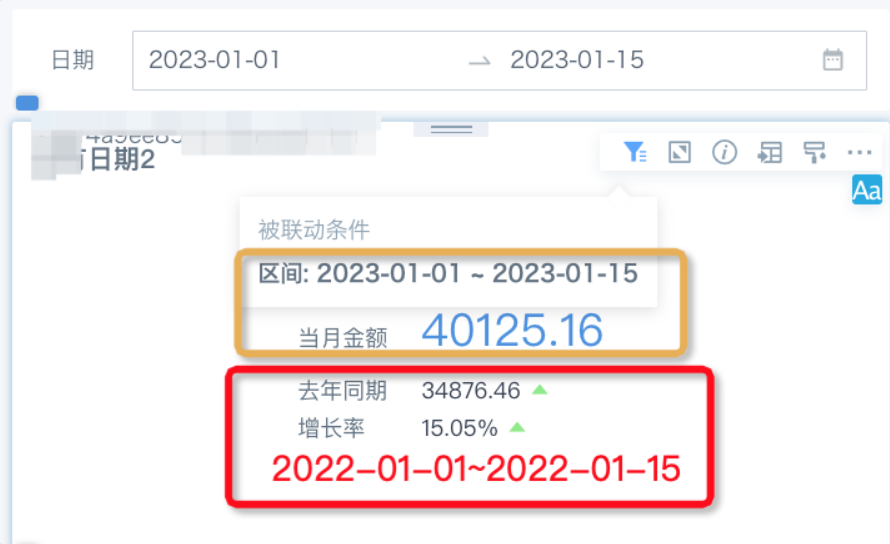
- Then select a time range in the page filter to compare and view the same-period value and growth rate for that time range.