Chinese-style Reporting Workflow
Overall Workflow
The GuanReport workflow consists of three stages: data preparation, template editing, and report preview and distribution.
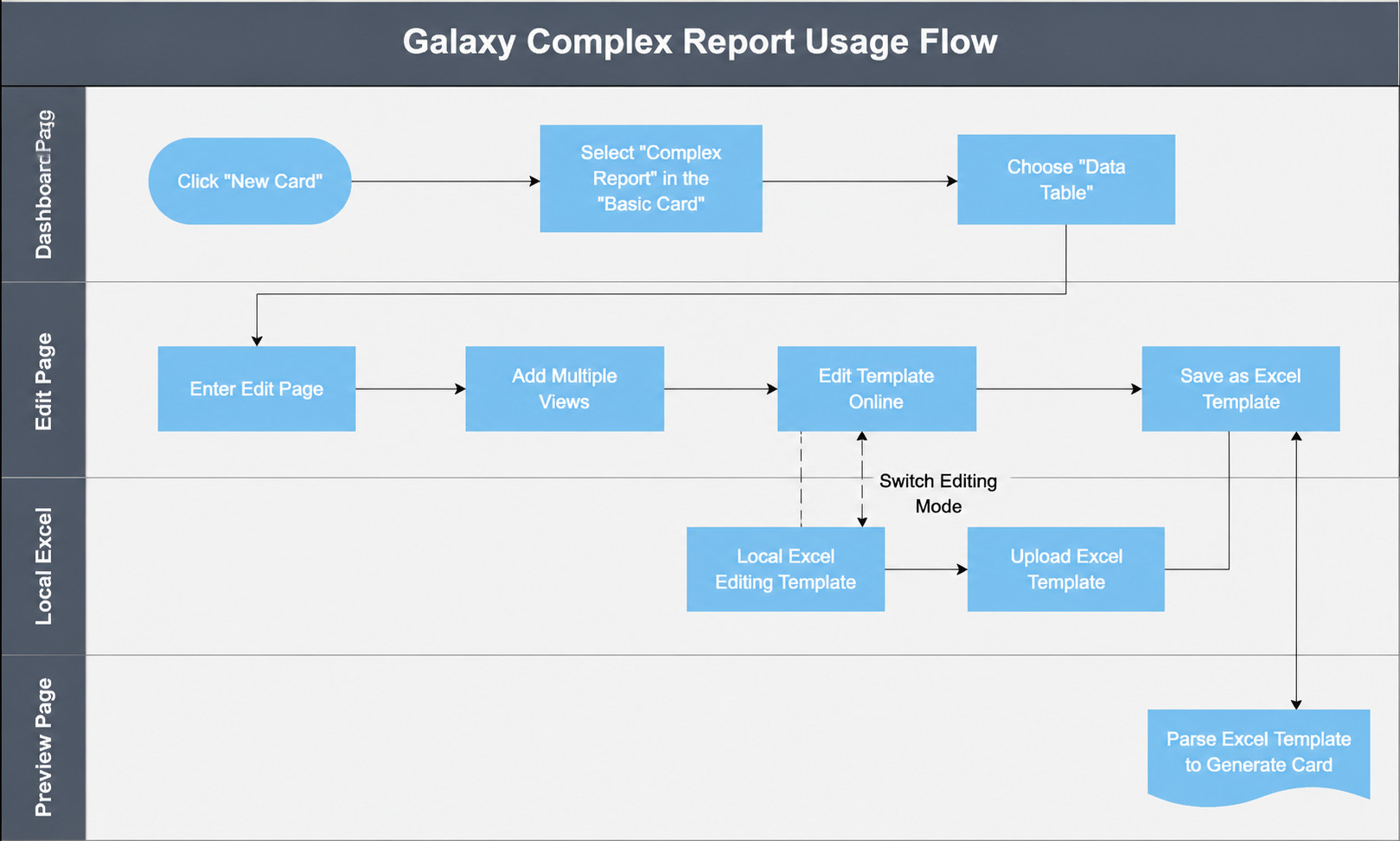
Data Preparation
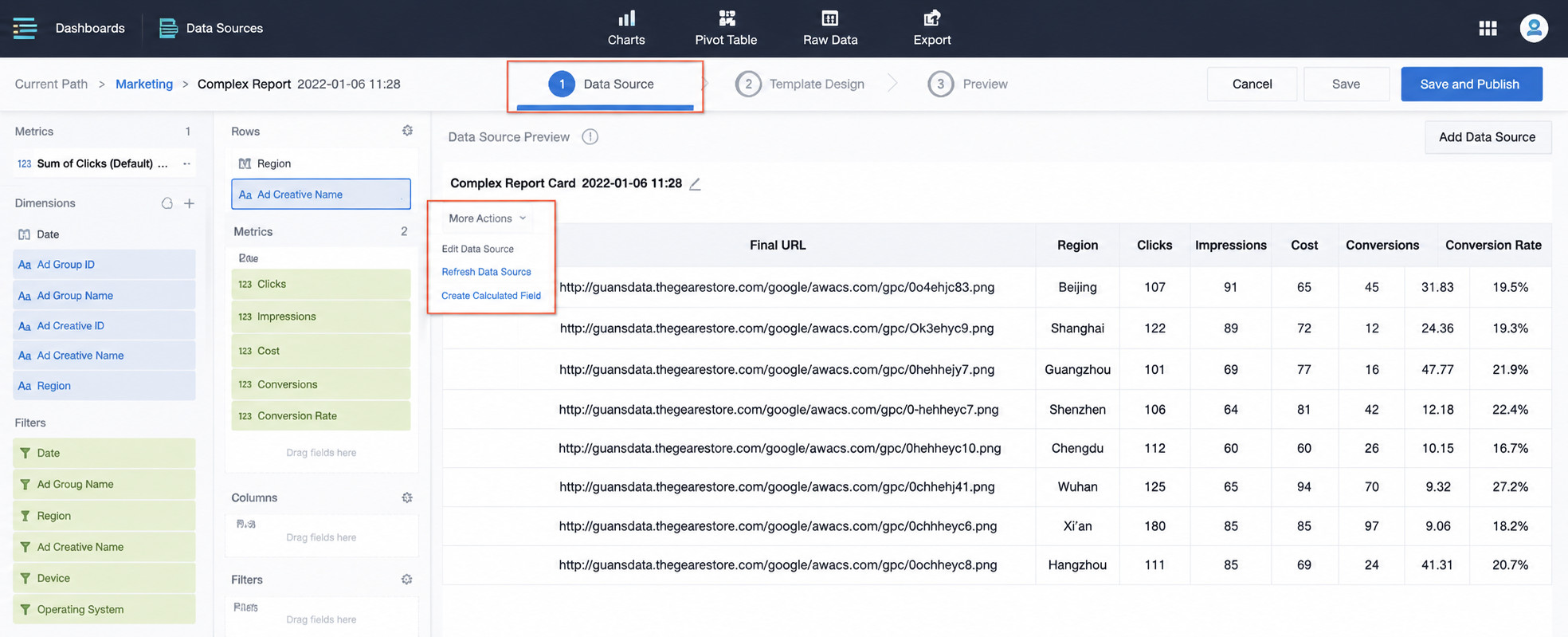
GuanReport does not connect directly to raw datasets. Instead, it uses view data, similar to the data model used by custom charts. Users can add one or more data views to a report. Each view can define dimensions, metrics, custom aggregation methods, advanced calculation usage, sorting, and filtering.
If a field such as a product URL needs to be displayed as an image, hyperlink, or text, click the field in the dimension area and configure its display type.
Template Editing
After view data is configured, create a GuanReport template either in online editing mode or from a local Excel file. Templates are built with Guandata formula syntax and native Excel capabilities.
Online Editing Mode
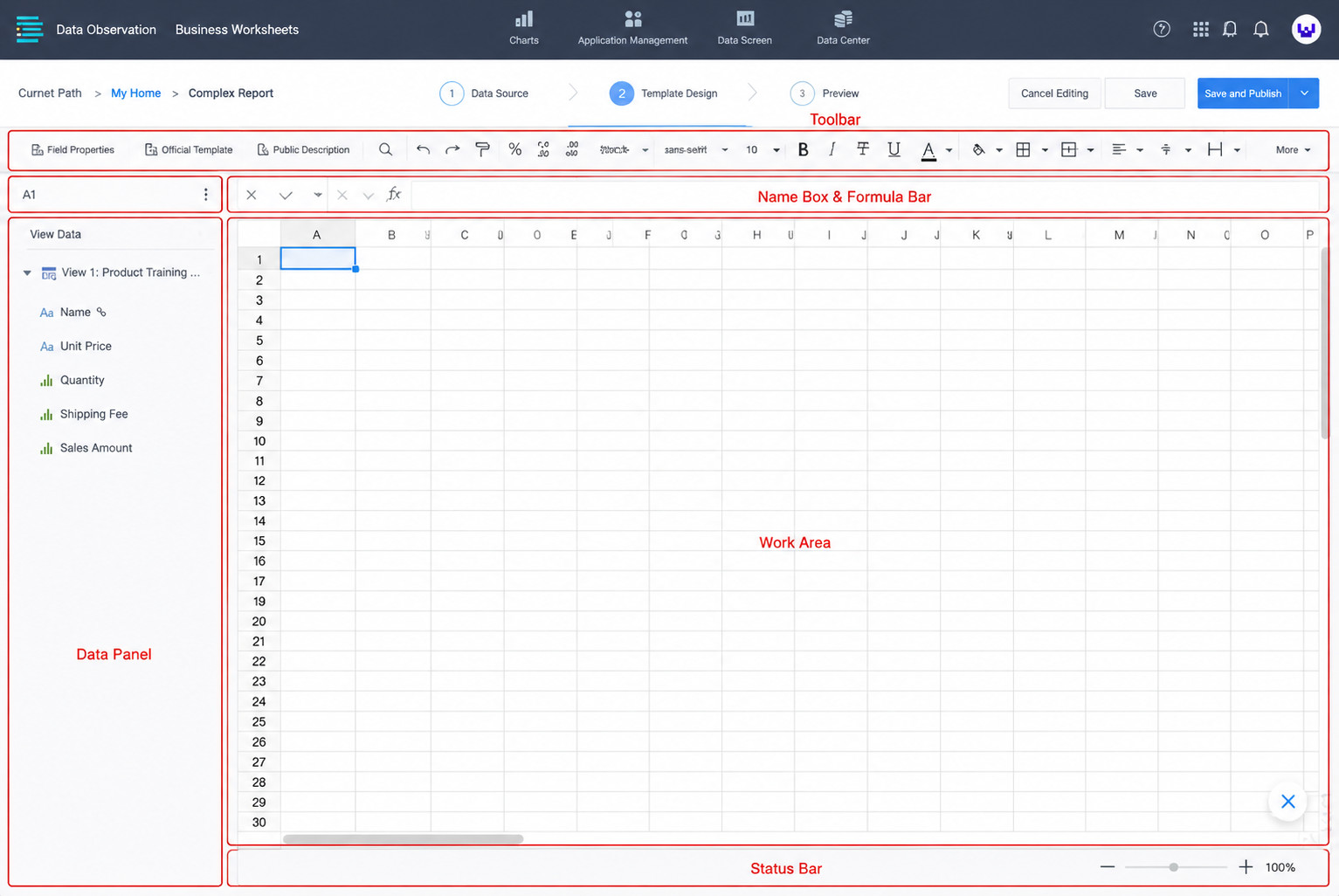
Online editing mode supports field drag-and-drop and does not require manually uploading a template. It currently supports the core Excel-like functions needed for report design.
| Module | Feature | Description |
|---|---|---|
| Online Excel editor | Field drag-and-drop | Select one or more fields from data views and drag them into the template. |
| Online Excel editor | Font style | Configure font family, size, color, bold, italic, underline, and other styles. |
| Online Excel editor | Cell style | Configure row height, column width, borders, and fill color. |
| Online Excel editor | Alignment | Supports top, middle, bottom, left, center, and right alignment. |
| Online Excel editor | Conditional formatting | Supports highlight rules, top/bottom rules, data bars, color scales, and icon sets. |
| Online Excel editor | Merge cells | Merge cells vertically or horizontally. |
| Online Excel editor | Line wrapping | Supports overflow, wrap, and clipped wrapping. |
| Online Excel editor | Data format | Supports general, date, currency, percentage, and other formats. |
| Online Excel editor | Hide rows/columns | Hide rows or columns. |
| Online Excel editor | Freeze | Freeze the first row, first column, or selected area. |
| Online Excel editor | Sort | Sort cell content ascending or descending. |
| Online Excel editor | Format painter | Copy formatting. |
| Online Excel editor | Undo/Redo | Supports undo and redo. |
| Online Excel editor | Find/Replace | Use Ctrl/Command + F to find and replace. |
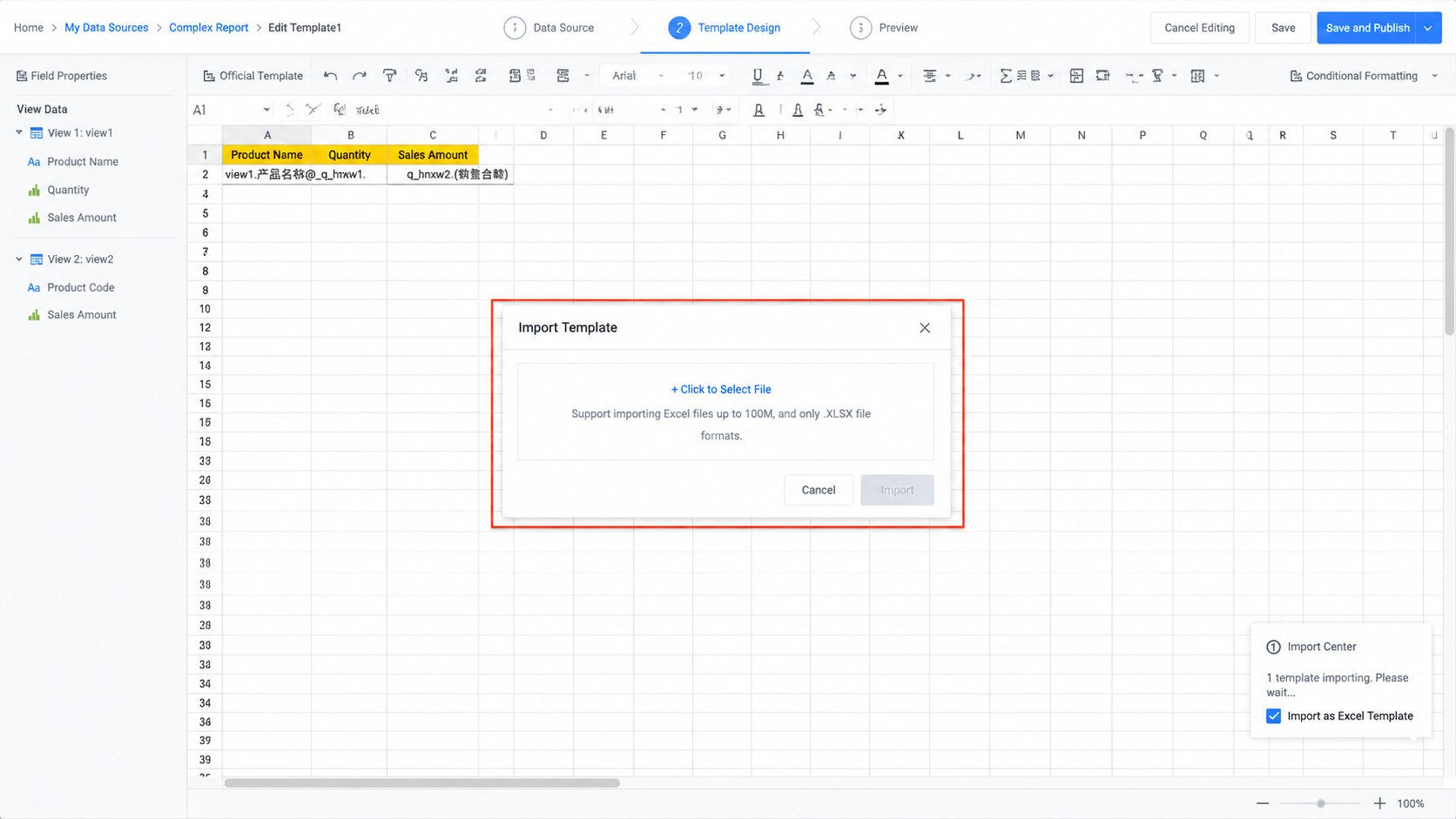
In online editing mode, you can import a local Excel template by clicking the tool icon in the lower-right corner and selecting Import Excel Template. After import, formulas in the local file are converted to the online editing formula syntax, and the imported template replaces the current online template.
Local Editing Mode
Local editing mode uses Excel templates and supports more complete Excel capabilities. It requires manual template upload and does not support field drag-and-drop.
| Module | Feature | Description |
|---|---|---|
| Local Excel template | Basic Excel styles | Font size, font color, bold, italic, underline, cell fill color, and other native Excel styles. |
| Local Excel template | Conditional formatting | Native Excel conditional formatting, including highlight rules, top/bottom rules, data bars, color scales, and icon sets. |
| Local Excel template | Alignment | Native Excel alignment, including indent increase/decrease. |
| Local Excel template | Merge cells | Merge cells in Excel. |
| Local Excel template | Wrap text | Enable text wrapping. |
| Local Excel template | Data format | General, date, currency, percentage, and other native Excel formats. |
| Local Excel template | Diagonal header | Draw diagonal headers in Excel. |
| Local Excel template | Hide rows/columns | Hide rows or columns. |
| Local Excel template | Cell style | Row height, column width, and default style. |
| Local Excel template | Excel formulas | Native Excel formulas such as aggregate, logical, text, mathematical, and financial formulas. |
| Local Excel template | Custom headers | Static report headers and custom layouts. |
| Local Excel template | Vertical expansion | Fill field values vertically. |
| Local Excel template | Horizontal expansion | Fill field values horizontally. |
| Local Excel template | Group data | Merge data in the same group. |
| Local Excel template | Inter-cell calculation | Use dynamic formulas for calculations between cells. |
| Local Excel template | Table stitching | Stitch multiple data views by columns or rows. |
| Local Excel template | Custom value lookup and aggregation | Query values with formulas and aggregate results. |
| Local Excel template | Custom subtotal and grand total | Use subtotal and total formulas across comparison items. |
Editing Mode Switching
When switching from local upload mode to online editing mode, GuanReport can automatically import the current template. The option Import current template is selected by default. After import, formulas in the local template are converted to the online editing formula syntax.
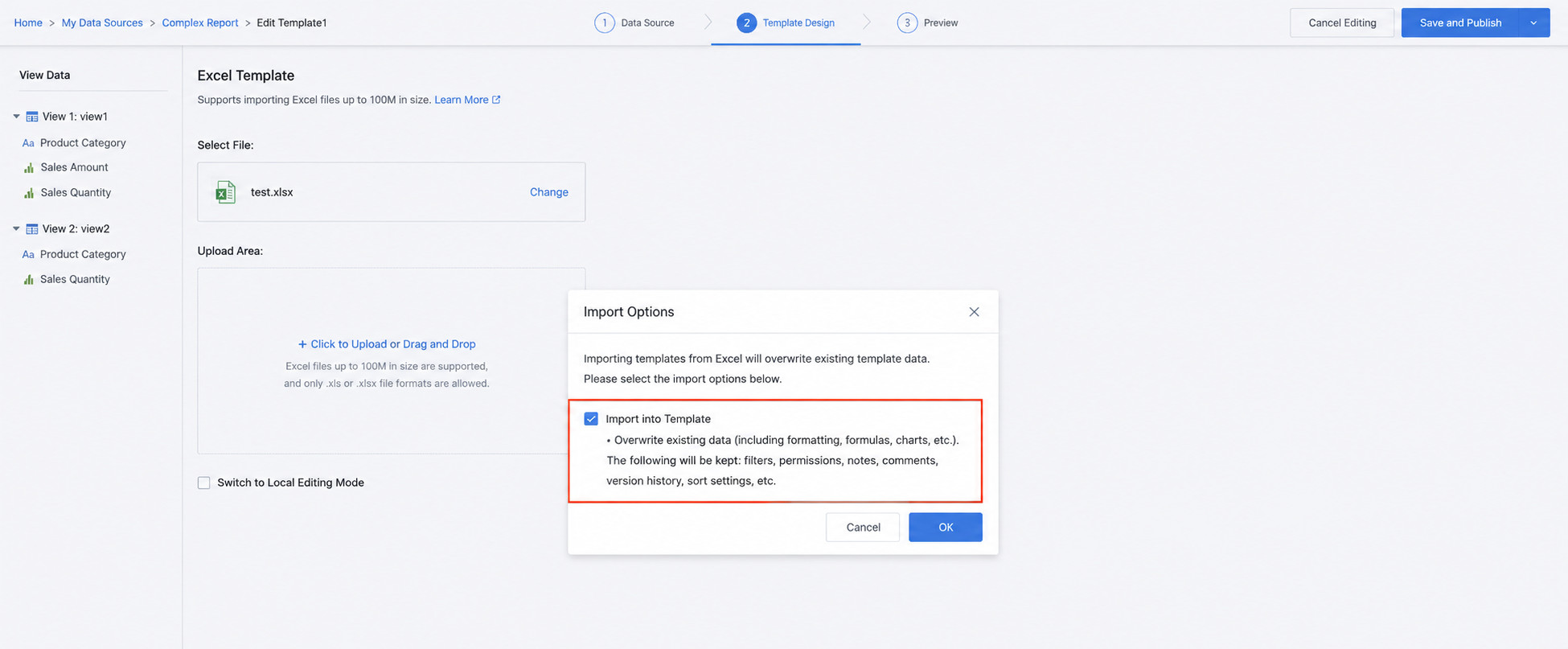
Notes
If a view name contains English parentheses, the error indicator on the right may show an error. Rename the view or remove parentheses before continuing.
Report Preview and Distribution
After a template is edited or uploaded, the system parses the formulas and generates a GuanReport card. The report card can then participate in analysis scenarios such as filters, parameters, and card linkage.
During preview, verify formula results, layout, styles, filters, and interactions. After saving, the report can be exported, downloaded, distributed, or subscribed to like other BI cards.
Example Workflow
This section uses a sample report to show how to create a GuanReport card, prepare multiple views, add formulas, preview results, and configure linkage.
Create a GuanReport Card
Create a new card, choose the Chinese-style Reporting / GuanReport chart type, and select the dataset to use as the report data source.
Build View 1
Data Preparation
Create the first view, drag in required dimensions and metrics, configure aggregation, sorting, and filters, and confirm the preview result.
Template Editing
In the template, add headers, field expansion formulas, lookup formulas, and necessary styles. Use online formulas such as =G_... in online editing mode, or local formulas starting with & in local editing mode.
Report Preview
After formulas and formats are configured, click Save and Continue to enter preview. Preview frequently while building the report so errors can be found early.
Build View 2
Data Preparation
Create another data view for additional metrics or comparison dimensions.
Template Editing
Add calculated fields such as target completion rate. In online editing mode, enter =G_ in a cell to open the formula list. When hovering over a formula, the editor shows its description so users can understand the formula quickly.
For example, choose CELLCALCEXP and enter a formula such as C{r}/E{r}. This means the value in column C is divided by the value in column E for the current row. Formula punctuation must use English characters.
For more formulas, see Online Editing Formula Reference.
If G_CELLCALC is used instead of G_CELLCALCEXP, only the current row is calculated and the calculation is not expanded to all rows.
Build View 3
Data Preparation
Prepare the third view for yesterday's retail sales, share, or other supplementary metrics.
Template Editing
Add headers such as Yesterday Retail Sales and Yesterday Share, and use LOOKUP and CELLCALCEXP formulas to calculate the corresponding values.
Report Preview
Preview the report after each major formula change. Confirm that values, row expansion, column expansion, subtotal, grand total, and styles are correct.
Configure Linkage
Add Filters
Add filters to the dashboard and configure interactions with the GuanReport card. Verify that the report responds correctly when filter conditions change.