External Account Association
Overview
External Account Association is an account integration feature provided by the system. It allows users to associate accounts from third-party platforms for convenient login and identity verification. Through this feature, users can log in directly with existing third-party platform accounts, such as LDAP, without creating a new account, which improves user experience and identity management efficiency. At the same time, administrators can centrally manage account associations across multiple platforms to enable enterprise-level unified identity management.
Usage Guide
Guandata SSO Integration
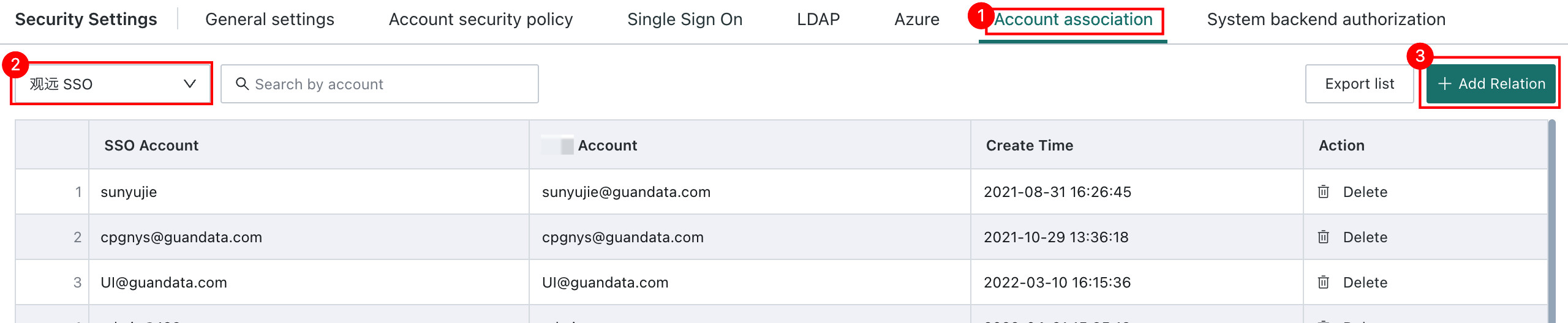
On the Admin Center > System Settings > Login Settings > External Account Association page, select Guandata SSO Integration on the left and click Create Association.
- If you want to associate an existing account, select the corresponding account and role type to complete the association.
- If you want to create and associate a new account, click Create Guandata Account.
LDAP
Guandata supports three types of user association operations.
-
Create a new user based on an LDAP account and complete association
On the Admin Center > System Settings > Login Settings > External Account Association page, select LDAP on the left, click Create Association in the upper-right corner, then select the corresponding account and role type to complete new user creation and association.

-
Download the Excel file of existing accounts, associate them, and upload again
On the Admin Center > System Settings > Login Settings > External Account Association page, select LDAP on the left, click the drop-down button > Associate Existing Accounts, and upload the downloaded Excel file.
DescriptionThe maximum size of the uploaded Excel file is 5 MB.

-
Create users in batches through an Excel file and associate them
On the Admin Center > System Settings > Login Settings > External Account Association page, select LDAP on the left, then click the drop-down button > Create Guandata Account.

The matching logic between LDAP accounts and Guandata accounts is as follows:
- After LDAP account and password verification succeeds, the Guandata backend checks the configured account association list to determine which Guandata platform account should be used for login.
- If no matching associated account is found, the system matches the LDAP account with the Guandata platform account,
LoginID. If the match succeeds, login is allowed.